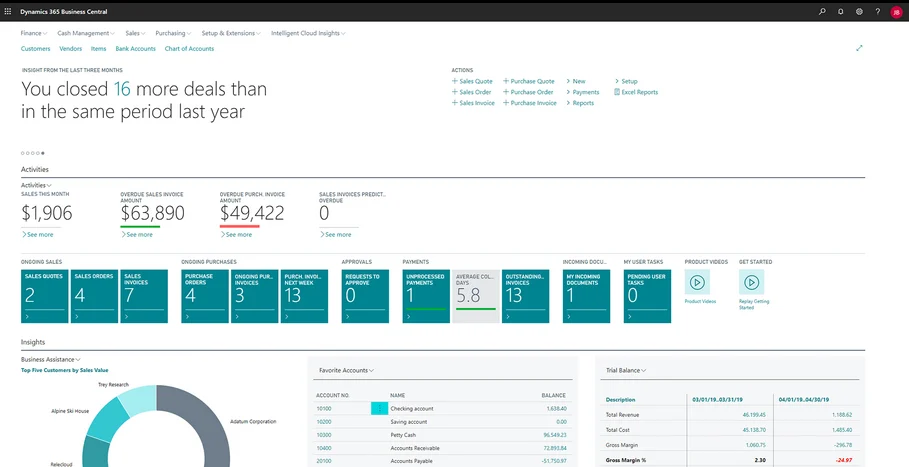

The suite of Dynamics 365 / Power Platform applications have two major releases per year (April & October) which you can self schedule when it becomes available for your tenant.
In the example below – we will go through the steps for self schedule the October 2019 update for a Business Central customer.
STEP 1 – Log into your Business Central admin center
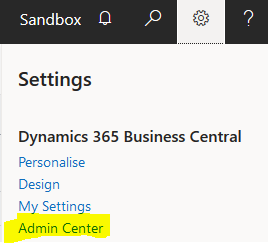
To access the administration area for Business Central – whilst logged into business central – click on the cog top right and select Admin Center.
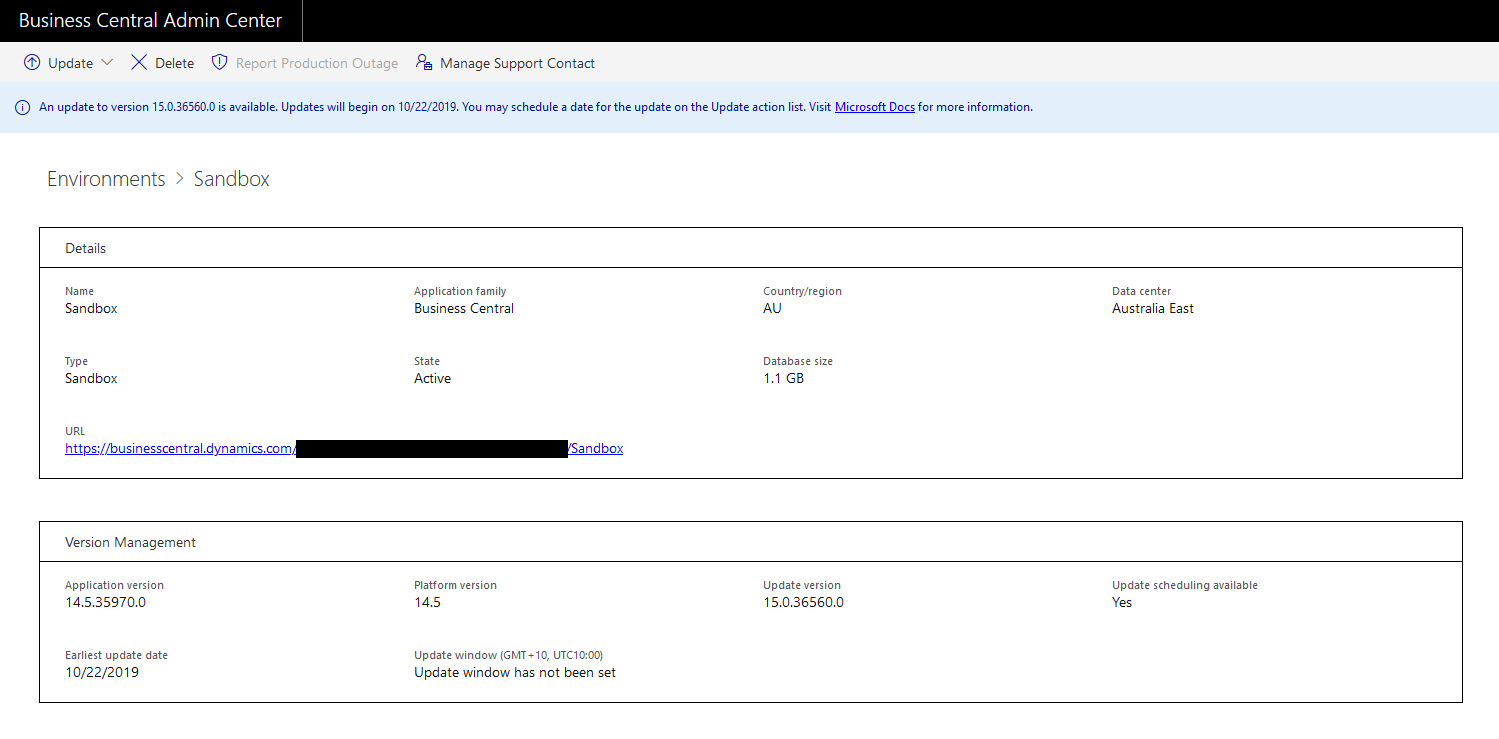
STEP 2 – Go into Environment wish to update
The following screen i have selected the applicable environment that we wish to update – in this example we will upgrade the sandbox.
TIP: Always upgrade your sandbox first, so that you can test all customization that may have been performed.
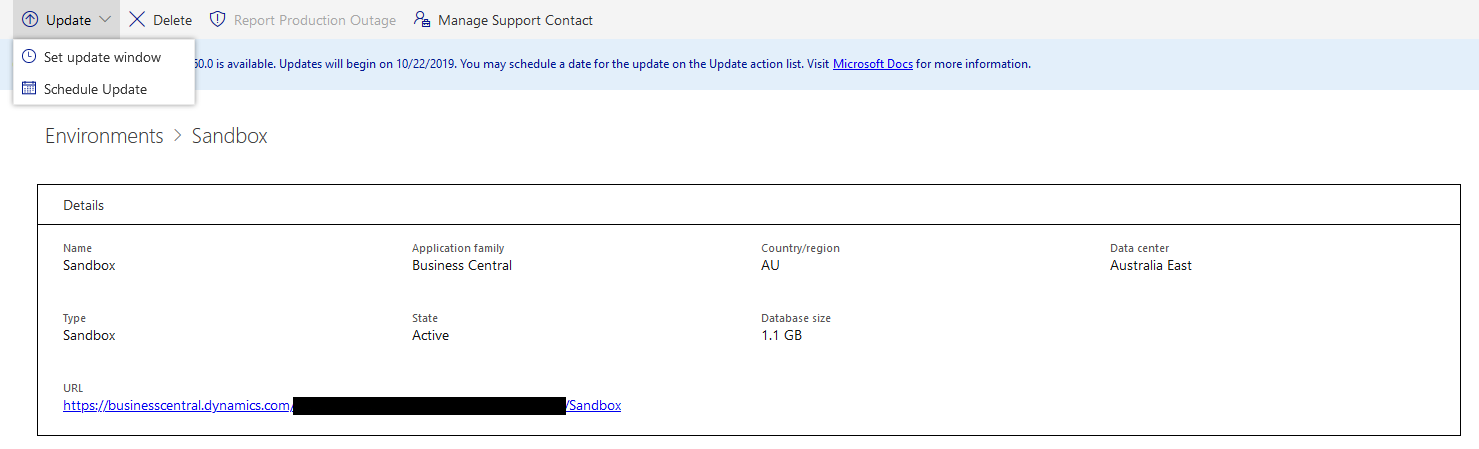
STEP 3 – Select Update (command bar)
Select the the Update button from the command bar (as below) and click on Schedule Update.
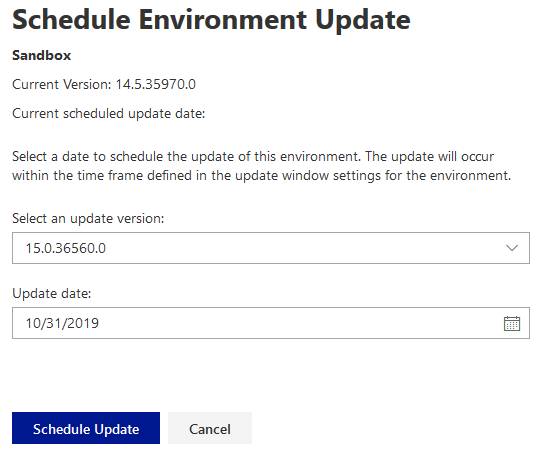
STEP 4 – Scheduling the update
If there is more than two versions available then you will see this in the drop down for the update version. Generally speaking there will only be one as part of the Microsoft Business Applications update cadence.
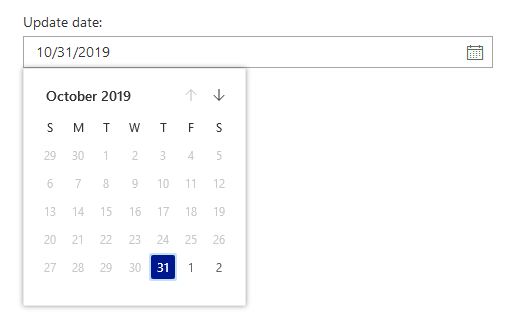
Any grayed out dates means that these dates aren’t available (example below being that it’s past those dates), but you can also see future dates grayed out when all allocations are booked.
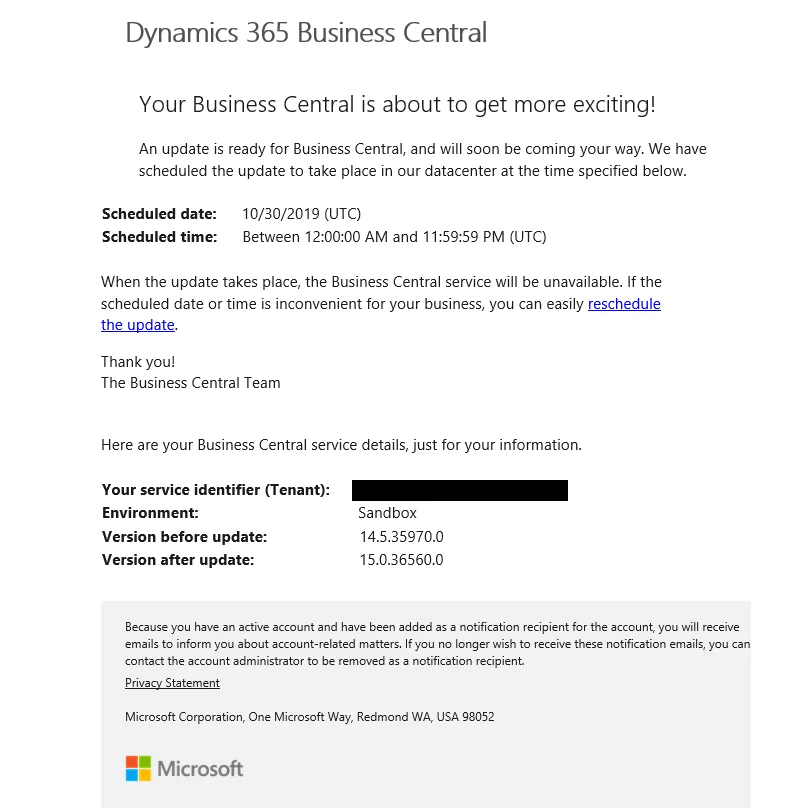
Email Confirmation from Microsoft Support
On completion of the previous step you will receive an email from Microsoft Supporting advising that your update is scheduled.
Note – the update time will show in UTC.
Environment updating…
We will notice that the status of the sandbox is now showing Upgrading

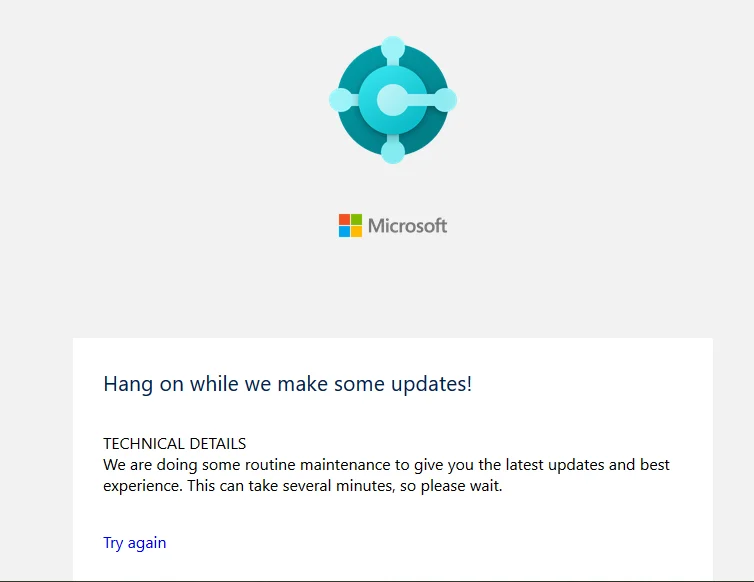
Business Central updating….
Whilst the update is happening you will see the following screen when you try to open your environment.
Email confirming update complete
Microsoft Support will send you an email on completion of the update.
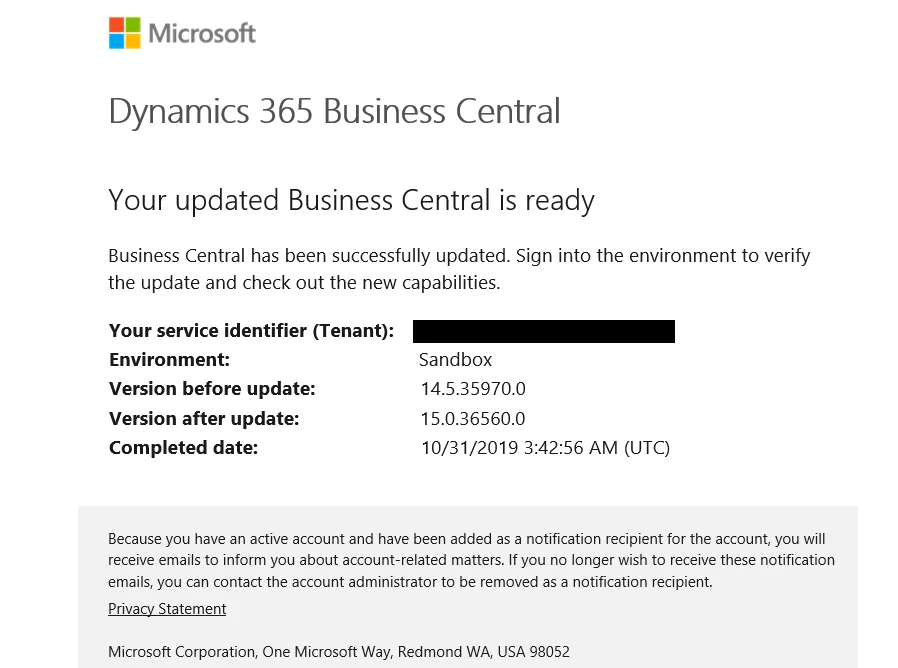
As you can see – it’s a really simple process and in the example of above – it took only 10 minutes to complete the update. This was a sandbox with little in it – however, i would generally allow 1 hour to be safe.